UUID References
|
This is a somewhat advanced, technical section. It is intended to give power users more knowledge about the internal function of LibrePCB, as this knowledge can be useful to increase productivity and to reduce the likelihood of running into troubles caused by broken UUID references. More technical details about references between library elements are available here. |
Purpose of References
In every EDA tool, libraries and projects are full of cross-references between different objects. For example, when attaching a wire to a pin in the schematic, the wire has to store a reference to that particular pin to successfully restore that connection when you open the schematic the next time.
Many EDA tools use the object’s name as reference. For example when you connect
a wire of the GND net to the pin named IN+ of the component with the
designator U3, the schematic editor stores a reference like U3:IN+ for the
attached wire in the schematic file. When opening the schematic the next time,
the editor searches for a component with the designator U3 in the project
library, and then for a pin named IN+ within this component to restore the
wire connection.
This system works, but it comes with a big disadvantage. Whenever you rename any referenced object (e.g. renaming pin IN+ to +), all the references to this object will break, causing broken library elements or projects. So in fact it is not allowed to ever rename or move things, or you will run into troubles. A typical symptom is that the editor throws errors like "Component XYZ not found", for example after updating libraries and then opening an older project.
References in LibrePCB
LibrePCB follows a different approach. Instead of referencing objects by their name, it assigns a random identifier to every newly created object, and uses this for all the references. In particular, it uses universally unique identifiers (UUIDs) which consist of 36 characters and look like 3da6ef2c-03ff-4ed1-a8b8-c8acf2ed0291.
For example, when you add a pin to a symbol, the editor automatically generates
and assigns a random UUID to the pin. You may give the pin a human-readable
name like IN+, but the editor gives it a UUID like
cc3af4a4-cc26-4548-a026-468e1d689ab3. This UUID is typically not user-facing,
so usually you won’t ever see it. But behind the scenes, LibrePCB uses this
UUID for any references. So a wire in the schematic which is attached to
a pin won’t reference the pin like U3:IN+ in other tools, but like
7b8fef14-64f9-4502-8094-7e2c1c0b6e9a:cc3af4a4-cc26-4548-a026-468e1d689ab3
where the first UUID refers to the component (U3) and the second UUID
refers to a pin of it (IN+).
Now whenever you rename objects like a symbol pin, it will only affect the human-readable name, but not its UUID. The UUID of an existing object will never change, so all the references to it will stay intact.
Drawbacks of UUIDs
This system comes with the advantage of keeping references intact even when renaming objects, thus avoiding broken library elements or projects after renaming or moving things. However, it also comes with some drawbacks you should be aware of.
Names Are Non-Functional
As LibrePCB itself only considers the UUIDs for making references, in fact it does not care about the name of objects. Names are only for you, not for LibrePCB.
Now when you make substantial renames to existing objects, like renaming pin IN+ to IN- because you want to swap those two pins of an OpAmp, this will change the meaning of the symbol pins. The pin which was IN+ before is now IN- and vice versa. However, since the underlying UUIDs were not changed, for LibrePCB the pin function has not changed either. So if a wire of the net VBAT was attached to pin IN+ before the rename, that wire will remain attached to the same pin after the rename, even though it’s now called IN-.
So, keep this in mind and be careful when changing the meaning of existing pins. In this particular example, it would be better to swap the positions of the two OpAmp pins instead of swapping their names, since swapping the positions will keep the relation between UUID and pin function.
Copy != Duplicate
The LibrePCB library editor allows you to copy existing library elements in two different ways, and it is crucial to know the difference of those operations to understand in which situation you need which of those.
- Copy
-
The copy operation is provided in the library overview tab, called Copy to Other Library. This operation will copy an existing library element 1:1 into another library, keeping all its UUIDs. In fact, this operation just copies the files from one library into another. As the UUIDs are preserved in this operation, in fact the copy still represents the same object — it is not a new, independent symbol.
For example when you copy a symbol named OpAmp into another library, and you rename the new copy to Comparator, in fact you won’t have two symbols afterwards! Since both symbols still have the same UUID, LibrePCB will pick only one of them (the one with the higher version number) and considers the other as an (outdated) duplicate. That duplicate won’t be listed anywhere, so it feels like it is lost.
The copy operation is only intended to override library elements from read-only remote libraries with your own modifications. If you’re not happy with a library element from our official libraries, you can copy it into your local library, modify it, give it a higher version number and save it. LibrePCB will then use your library element in place of the original library element.
Except from this particular use-case, the copy operation is usually not the right operation. If used wrongly, it can lead to surprising behavior.
- Save To
-
This operation is provided in the Project Library Manager and is called Copy elements to local library. It is exactly the same as the Copy operation, just for copying library elements from a project into a library rather than between two libraries. It allows to add library elements from a project to your local library (keeping their UUIDs), so you can modify the elements or reuse them in other projects.
- Duplicate
-
This operation is provided in the library overview tab to duplicate a library element within the opened library. In contrast to the Copy operation, the Duplicate operation generates new UUIDs for the duplicated library element and all its contained objects. It is not just a file copy operation.
This is the right operation to create a new library element which is similar to an existing element, so you don’t have to start from scratch. For example when you want to create a symbol called Comparator, you can duplicate the existing OpAmp symbol, rename it to Comparator, adjust its metadata, graphics and pins as desired, and save it. The result will be a new, independent Comparator symbol which has no relation to OpAmp anymore. All UUIDs are re-generated, so it is like a new symbol created manually from scratch.
Usually, this is the operation you are looking for.
Breaking Changes
As you may understand by now, the data structures of libraries and projects are full of references. A project consists of hundreds or thousands of wires, traces, nets, pins and pads which are all linked together by referencing each other. This is true for every EDA tool, no matter if references are made by names, UUIDs or anything else. References are everywhere.
Given this fact, it is also clear that there is always the risk of broken references. Imagine you add a symbol to a schematic and connect wires to its pins. Now you realize the symbol is not exactly correct as it has a pin which the real part doesn’t have. So you open the symbol in the library editor, delete that pin, and save the symbol. Then you update the project’s library (with the Project Library Manager in LibrePCB) to update the symbol in your schematic with the new one. But you have already attached a wire to the pin which no longer exists. This means that the wire holds a reference to a pin that doesn’t exist (anymore), a case which we call broken reference.
Some tools may silently ignore such broken references and try to revert to a valid state. In this particular case, they might silently disconnect the wire from the pin, leaving behind a "dead end" wire.
Other tools, like LibrePCB, are more strict about broken references. Instead of silently ignoring such (potentially unintended, dangerous) invalid situations, the tool throws an error to inform you about the problem. This may lead to a situation where you cannot open the project anymore until the problem is fixed (e.g. the deletion of the pin is reverted).
To avoid headaches and wasted time, such situation should be avoided to happen at all. In other words, it is highly recommended to never make so-called breaking changes to existing library elements. If you have a situation like the described superfluous symbol pin, it is better to create a new library element (using the Duplicate operation) and make the breaking changes there. Then just replace the wrong symbol in the schematics with the new one. Using this workflow, there will never be any broken references, causing no errors or other troubles.
Making Breaking Changes
LibrePCB tries to prevent you from (accidentally) making breaking changes. Generally you don’t need to worry about breaking changes in library elements — whenever you made a breaking change to an existing library element, LibrePCB will warn you with this banner:
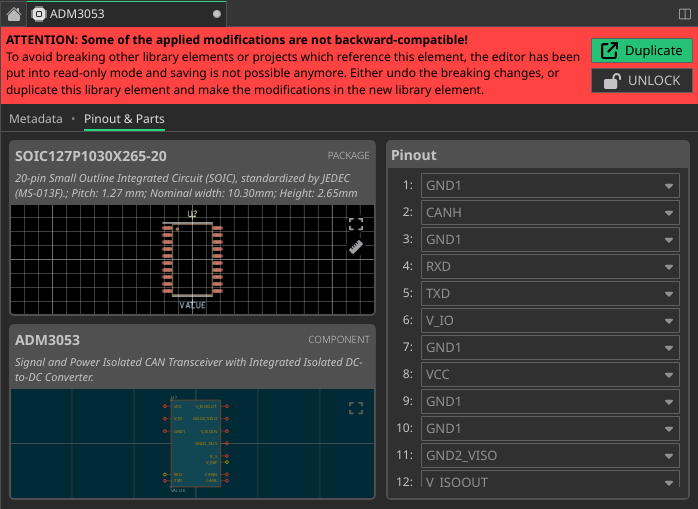
As soon as this red banner shows up, the editor is put into read-only mode and saving is not possible anymore. Now you have three options:
- Undo
-
If the breaking change was not intended, you can just undo the change (Ctrl+Z) and the editor will leave the read-only mode automatically.
- Duplicate
-
If you instead want to make the change in a new library element rather than breaking the opened element (as described/recommended in the Duplicate section above), just click the Duplicate button in the banner and make the changes in the newly opened tab. LibrePCB will then automatically undo the breaking changes in the existing library element to leave the read-only mode.
- Unlock
-
The third option is the only dangerous one — by pressing & holding the Unlock button you can leave the read-only mode, so it will be possible to actually save the breaking changes to disk.
This operation is regularly the reason why inexperienced LibrePCB users end up in troubles and ask us for help, complain about errors, or even blaming us about bugs in the libraries or the tool — bugs which don’t exist!
So: Only use the unlock feature if you have fully understood how our referencing system works, what breaking changes are, and what consequences they have.
Simply put, there is only one case where it is safe to unlock and make breaking changes to an existing library element: If that particular library element is not referenced yet from anywhere else. For example a symbol is not referenced from anywhere else if it has never been loaded as a gate into a component. If you create a component using that particular symbol, the symbol is considered as referenced — even though you never added it to a project.
A typical case for using the unlock feature is to continue work on an unfinished library element. For example you started to create a new symbol today, but you have to shut down the computer before it is finished. Tomorrow you open the symbol again to continue working on it. In this case, LibrePCB will prevent you from making breaking changes, and you have to unlock it to continue work. It wouldn’t be reasonable in this case to duplicate the unfinished library element — just unlock it.
For unlocking, you need to press and hold the button for a moment. The required holding time depends on the age of the library element to unlock. For the typical use-case of continuing work on a library element you just created the day before, only a short hold time is needed. But to unlock a library element that has existed for a year, you need to hold the unlock button for several seconds because the older the library element is, the higher the probability that it has already been referenced from other objects, and therefore the higher the risk of troubles.
So if a library element needs a long time to unlock, you should think twice about if you are really sure to make breaking changes to it.
|
Please note that there is also a case where the "breaking changes"-banner doesn’t show up, even if you made a breaking change: When you create a new library element, the banner will be suppressed as long as the tab of the new element stays open. This is the case because for new library elements it is normal that you make breaking changes all the time (e.g. every single pin you add to a new symbol is a breaking change). To not annoy you with the banner during the normal workflow of creating a new library element, it will be suppressed. However, this can lead to a dangerous situation: Imagine you create a new library element, save it but keep the tab open, then use it in other library elements or projects, and then make further (possibly breaking) changes in the still opened tab of the new library element. In this case, you may have just created a hell of a mess but LibrePCB didn’t warn about it. |
Recommendations
Here are some simple recommendations which help to avoid running into troubles due to broken references:
-
Fully finish library elements before starting to use them (right first time)! Do not just create a quick&dirty package & corresponding device, add them to a project, and then iterate those library elements many times to get them finished & right. It is no problem to correct smaller things later (silkscreen drawings, pad sizes, MPNs, datasheet URLs etc.), but the fundamental things (number of pads, package & component of a device, pinout etc.) need to be done right from the beginning on. You can save yourself a lot of headaches (and time) if you seriously finish library elements one after the other instead of just hacking around with trial & error. LibrePCB is not the tool to hack around.
-
After you created a new library element, close the editor tab before using the new library element anywhere else. This will enable the detection of breaking changes for the new library element — without closing the tab, the "breaking changes"-banner will be suppressed, and you won’t notice when you are about to create troubles.
-
When the "breaking changes"-banner shows up in the library editor, do not click on Unlock unless you are 100% sure that the library element has not been used by another library element or a project yet. If you are not 100% sure about this, use the Duplicate operation.
-
When creating new library elements by copying an existing library element, use the duplicate operation, not the copy operation. Generally, the copy operation is almost never what you are looking for.
-
Never copy/move/modify files on the file system directly. Always perform operations in LibrePCB, as LibrePCB will take care of UUID handling then. As soon as you edit files on the file system directly, there is no safety net anymore and you can run easily into a hell of a mess.